Home - SPSS tables overview
(this site uses frames, if you do not see the weblecture and definitions frames on the right you can click here)
2.6.1.2. SPSS: Cross table
There are two methods to generate a cross table with SPSS. Either by using the Crosstabs option in the Descriptive Statistics, or using the Custom tables.
Cross table using crosstabs
The basic steps to generate a cross table using the crosstabs option in SPSS are:
- Click in the menubar on Analyze
- Click on Descriptive Statistics
- Click on Crosstabs
- Move the variable you want in the rows to the Row(s) section
- Move the variable you want in the columns to the Column(s) section
- If you want to display percentages:
- Click on Cells
- Tick the type of percentages (based on row, column and/or grand total) at Percentages
- Click on Continue
- Click on OK
Detailed instructions with screenshots can be found in this PDF, or watch the weblecture on the right.
The result will look something like

Figure 1. Example output from crosstabs in SPSS 23 or earlier
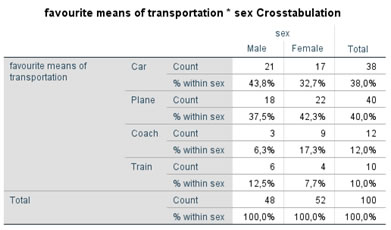
Figure 2. Example output from crosstabs in SPSS 24
Cross table using Custom tables
The basic steps to generate a cross table using the Custom Tables option in SPSS are:
- Click in the menubar on Analyze
- Click on Tables (or in version 23 on Custom Tables)
- Click on Custom Tables
- Drag the variable you want in the rows to the Rows
- Drag the variable you want in the columns to the Column
- If you want to show totals
- Click on the column variable
- Click on Categories and Totals
- Tick the Total option
- Click on Apply
- Click on the row variable and repeat the previous steps
- If you want to show percentages:
- Click on Summary Statistics
- Select the percentages you want to display (e.g. Column Valid N %) and move it to the Display section
- Click on Apply to Selection
- SPSS 24: Click on Close
- Click on OK
Detailed instructions with screenshots can be found in this PDF, or watch the weblecture on the right.
The result will look something like
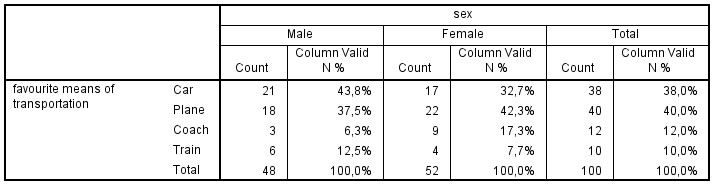
Figure 3. Example output from custom tables in SPSS 23 or earlier